Stellarium has a powerful scripting engine that allows you to automate tasks, create custom views, and interact with the Stellarium interface. The scripting engine uses JavaScript and provides access to a wide range of functions and properties that allow you to control various aspects of Stellarium.
Stellarium ships with a number of example scripts that demonstrate how to use the scripting engine. You can find additional scripts on the Stellarium website that you can use in your presentations or plagiarize when creating your own scripts to automate tasks or create custom presentations.
Running a script
There are several ways to run a script in Stellarium. You can run a script from the scripts tab in the configuration dialog. You can select a script from the list and click the run button ( ▶ ) to execute it. Title, description, author, and version information are displayed in the script information section.
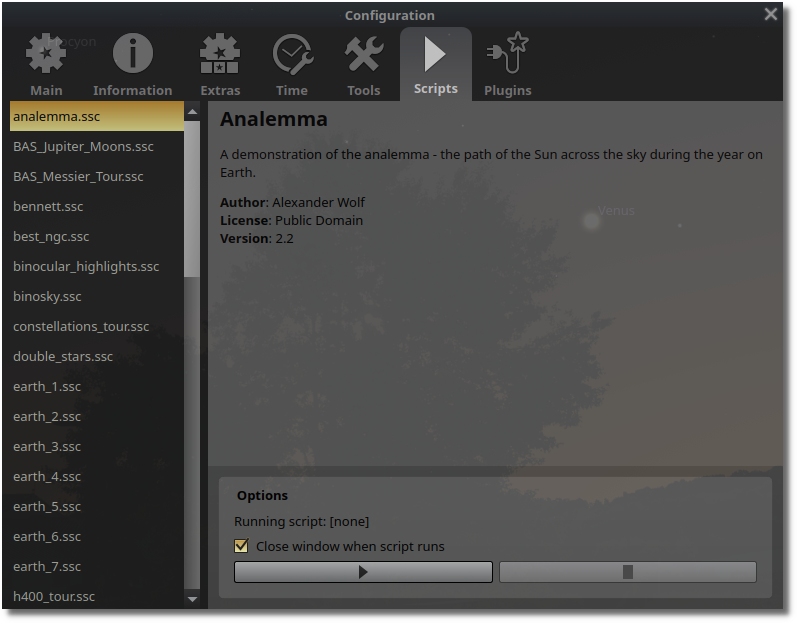
Figure 1:Stellarium Scripts
The Scripts Console
There is also a script console you can access by pressing F11. In the console you can open, edit, and run scripts in whole or in part. There is also a log that shows any errors that occur and an output tab that shows the output of the script. This is useful for debugging your scripts and making minor adjustments to existing scripts. A proper text editor should be used for writing scripts, but the console is useful for quick edits and testing.
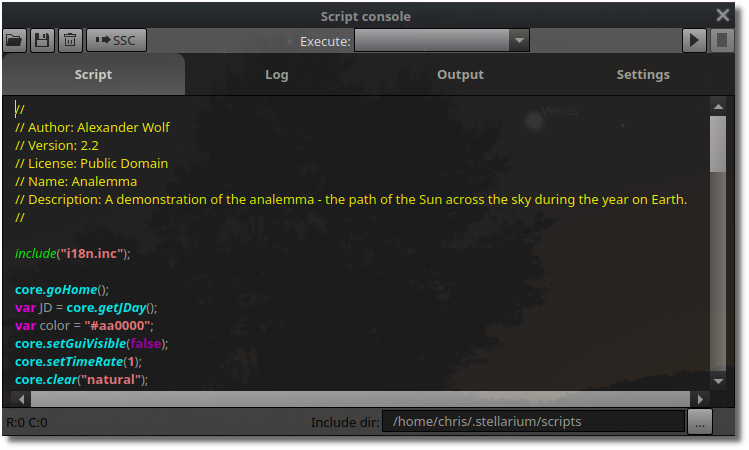
Figure 2:Stellarium Console
Keyboard Shortcuts
You can also assign a script to a keyboard shortcut. This is useful for running scripts during a presentation. To assign a script to a keyboard shortcut, open the help dialog and click “Edit keyboard shortcuts”. Select the script you want to assign, enter the keyboard shortcut you want to use, click the “Apply” button. You can now run the script by pressing the assigned key combination.
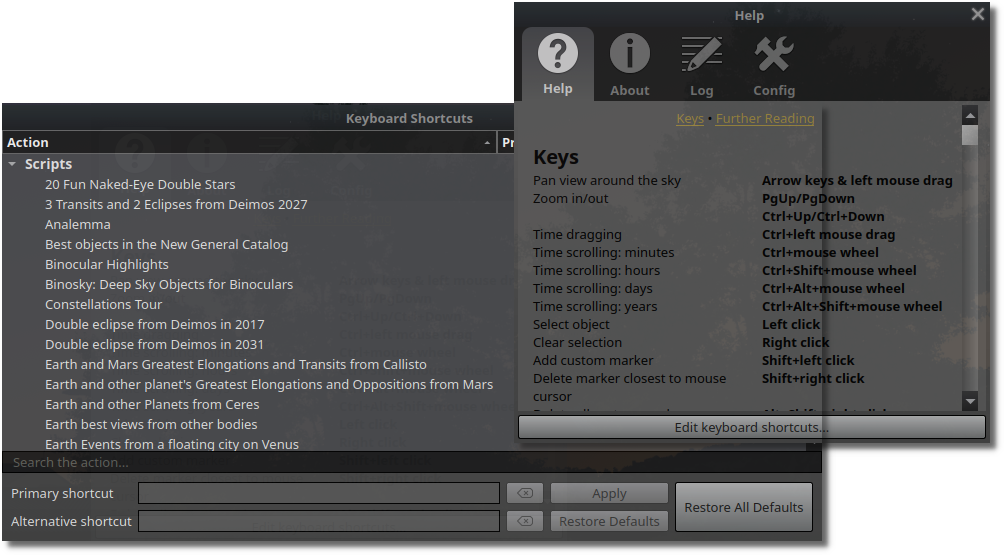
Figure 3:Stellarium Keyboard Shortcuts
Command Line and Startup Scripts
If you run stellarium from the command line, you can specify a script to run at startup using the --startup-script option followed by the path to the script. There is a script called startup.ssc in the scripts directory that runs by default. There is nothing in it, but you can add your own startup commands to it. For example, you could set the location, time, and landscape at startup by adding those commands to the startup.ssc script.
You can also run a script by double-clicking on the script file in the file manager. This will open Stellarium and run the script if Stellarium is registered as the default application for .ssc files. Otherwise you can right-click on the script file and select “Open with Stellarium” to run the script.